
Automated Start/Stop in Azure: A Smart Cost Optimization Strategy
Why Start/Stop and Not Just Reserved Instances or Savings Plans?
Shutting down your workloads when not in use is a key cost optimization initiative in the cloud.
One of the biggest implications of moving to the cloud is adopting its Pay-as-You-Go nature. In the cloud, you should find the sweet spot and just pay for WHAT (rate optimization) you use and WHEN (usage optimization) you use it. In this case, Automated Start/Stop is a measure that covers the latter.
I see many companies that don’t implement these features at all in non-production environments and, instead, they fall into the rabbit hole of Reserved Instances and Savings Plans or BYOL licensing through Azure Hybrid Benefit, which, in my view, creates a lot of administrative overhead:
- License Management: You need to constantly count cores to ensure your workloads are covered by Azure Hybrid Benefit and collaborate with Procurement teams to ensure licenses are renewed and decommissioned when needed
- RI Metrics Monitoring: You need to keep an eye on your RI metrics such as Utilization and ESR (Effective Savings Rate) to ensure you don’t waste money on your reservations
- Renewal Complexity: You need to handle the renewal process of RIs, which will change the picture every year, and also tackle challenges such as cost allocation or scope selection for RI/SPs
Instead of going down that road, I always try to prioritize Automated Start/Stop. Even though it may require some administrative overhead (setting up automations, for example), it can provide great savings in a simple way when done right and, in my opinion, is a simpler process.
The Potential Savings
Let’s begin from the beginning: do you truly know how much you can save JUST by using a service on a 12×5 schedule? (Monday to Friday, 7 AM to 7 PM)
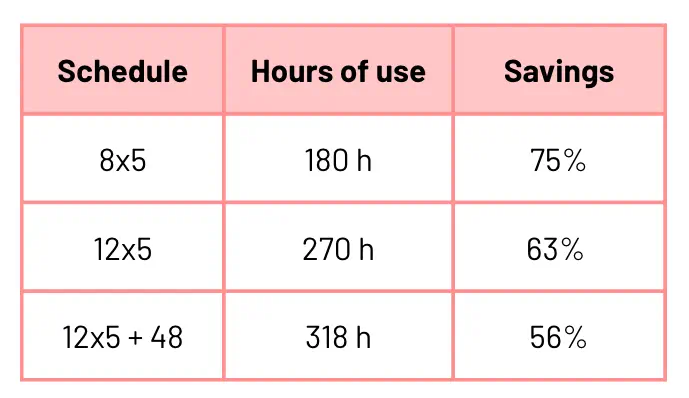
The savings percentages, as we can see, are jarring. If we want to reach this level of optimization with RIs, the only option would be to go for 3-year term RIs, which implies a lot of money spent on a service for three years.
Examples of Services That Support Start/Stop
IaaS Workloads
IaaS workloads are usually the start of this journey. Some services that support this approach:
- Virtual Machines: Full Start/Stop capability
- Azure Kubernetes Service (AKS): Cluster can be stopped and started
- Virtual Machine Scale Sets: Can be scaled down to zero instances
- Azure Virtual Desktop (AVD): Host pools can be scaled to zero or stopped. Combine Auto shutdown schedules with “Start VM on Connect” feature to automatically power on VMs when users need them, while shutting them down during off-hours
- Azure Batch: Pools can be scaled to zero nodes
PaaS Workloads
PaaS workloads, especially databases, also offer various manners of Start/Stop:
Databases:
- Azure SQL Serverless: Automated Start-Stop based on activity
- Azure Database for PostgreSQL Flexible Server: Manual Start-Stop with auto-restart after 7 days
- Azure Database for MySQL Flexible Server: Manual Start-Stop with auto-restart after 30 days
- Azure SQL Managed Instance: Automatic or manual Start-Stop
- Azure Cosmos DB: Serverless option with automatic scaling to zero
Analytics & Data Services:
- Azure Synapse Analytics: Dedicated SQL pools can be paused
- Azure Analysis Services: Can be paused when not in use
- Azure Data Explorer: Can be stopped (preview feature)
- Azure Databricks: Clusters can be configured with auto-termination
Development & Integration:
- Azure Container Instances: Pay-per-second billing; terminate when not needed
- Azure App Service: Can be stopped (though less common in production)
- Azure API Management: Developer/Consumption tier scales to zero
- Azure Integration Service Environment (ISE): Can be stopped for non-production
Important Considerations
Storage Costs Continue
Here’s something critical that often surprises people implementing Start/Stop for the first time: you still pay for storage costs when resources are stopped. Managed disks attached to VMs, for example, continue to incur charges even when the VM is deallocated. The same applies to database storage—stopping an Azure SQL Database or a PostgreSQL/MySQL server doesn’t eliminate the storage costs for that provisioned capacity. Snapshots, backups, and certain network resources like static public IPs and load balancers also keep generating costs regardless of compute state.
The key insight here is that Start/Stop savings come primarily from compute costs—the CPU and memory you’re no longer consuming. For a typical VM, this is still substantial since compute usually represents 70-80% of the total cost, but it’s important to set realistic expectations about the savings.
Startup Time and Application Considerations
Another aspect to consider carefully is startup time. Not all Azure services restart instantly. AKS clusters, for instance, can take 5-10 minutes to come back online, while SQL Managed Instances can take even longer. This matters when you’re planning schedules—if your dev team starts work at 8 AM, you’ll want those resources up and running before they arrive, not starting to boot at 8 AM.
For VMs specifically, you can leverage Hibernation to significantly speed up this process. Instead of a full shutdown and cold boot, hibernation saves the VM’s memory state to disk, allowing it to resume in seconds rather than minutes. This is particularly useful for workstations and development VMs where maintaining session state and loaded applications improves productivity.
Beyond just startup time, think about application state and behavior. Your applications need to handle graceful shutdowns and restarts without data loss or corruption. Some services assign new endpoints after restart, so connection strings and DNS configurations need to accommodate this. And don’t forget about warm-up time—applications that rely heavily on caching, JIT compilation, or need to load large datasets into memory will need extra time to reach optimal performance after a cold start.
Automating Start/Stop
Custom Automation Solutions
There are many ways to automate the Start/Stop process in Azure:
- Azure DevOps Pipeline: Executes AZ CLI/PowerShell/REST API calls on a schedule
- Azure Automation Runbook: Executes AZ CLI/PowerShell/REST API calls triggered by schedules
- Azure Function: Executes PowerShell/REST API calls with timer triggers
Ready-Made Solutions
If you don’t want to go through the hassle of creating such automations yourself, you can rely on ready-made tools or features:
- VM Automated Shutdown: Native Azure VM feature for automatic shutdown on a schedule
- VM Automated Startup: To start VMs automatically on schedule, use:
- Automation Tasks: Simple no-code automation directly from Azure Portal
- Scheduled Actions REST API: More advanced scheduling capabilities for programmatic control
- Azure Start/Stop VMs v2: An Azure Function-based solution that you can deploy in your subscriptions to manage multiple VMs across subscriptions
Final Recommendations
- Start with Non-Production Environments: Begin your Start/Stop journey with development, test, and staging environments where the business impact is lower and savings potential is highest.
- Prioritize Shutdown Over RIs/SPs in Non-Prod: In non-production environments, always prioritize implementing Start/Stop over purchasing Reserved Instances or Savings Plans. Only consider RIs for those critical VMs that truly cannot be shut down, such as Active Directory Domain Controllers, DNS servers, or monitoring infrastructure that needs to run 24×7.
- Use Tagging for Automation: Implement a consistent tagging strategy (e.g.,
AutoShutdown: Enabled,Schedule: 12x5) to easily identify and manage resources that should be included in automation. These tags can be used by automation services to identify the VMs that can be stopped/started. - Monitor and Optimize: Regularly review your automation logs and actual usage patterns to fine-tune schedules and maximize savings. To implement this, I usually create my own Start/Stop dashboards (Log Analytics workbooks, for example) to oversee these processes
- Consider Time Zones: Ensure your automation accounts for the correct time zones, especially if you have resources distributed globally.
- Plan for Exceptions: Build flexibility into your automation to handle exceptions like maintenance windows, deployments, or special business events.
- Communicate with Stakeholders: Ensure development teams and business users are aware of shutdown schedules to avoid surprises and productivity impacts.
- Combine Strategies: Use Start/Stop for variable workloads and non-production, while reserving RIs and Savings Plans for stable, production workloads that need 24×7 availability.
- Start Simple: Begin with basic schedules and gradually add sophistication as you learn what works best for your organization.
Conclusion
Automated Start/Stop is one of the most effective and straightforward cost optimization strategies in Azure. With potential savings of 50-75% or more on non-production workloads, it should be one of the first initiatives in any cloud cost optimization program. While Reserved Instances and Savings Plans have their place, Start/Stop automation offers immediate value with less administrative overhead and greater flexibility.
When proposing this initiative, you will most probably face some resistance from Engineering teams, but the key is to demonstrate value quickly with pilot projects, show the actual savings in dollars, and address concerns about startup times and operational impact through proper planning and communication.
The key is to start small, measure results, and gradually expand the scope as you build confidence in the process. Remember that even with storage costs continuing, the compute savings alone make this one of the highest ROI cloud optimization strategies available. Your finance team—and your cloud budget—will thank you.
Want to dive deeper into Azure cost optimization? This topic and many more are covered in my comprehensive Azure Cost Optimization & FinOps Master Course, which begins next week on February 9th, 2026. Join us to master the complete spectrum of Azure FinOps practices, from automated start/stop strategies to advanced cost allocation, rightsizing, and cloud financial governance.
